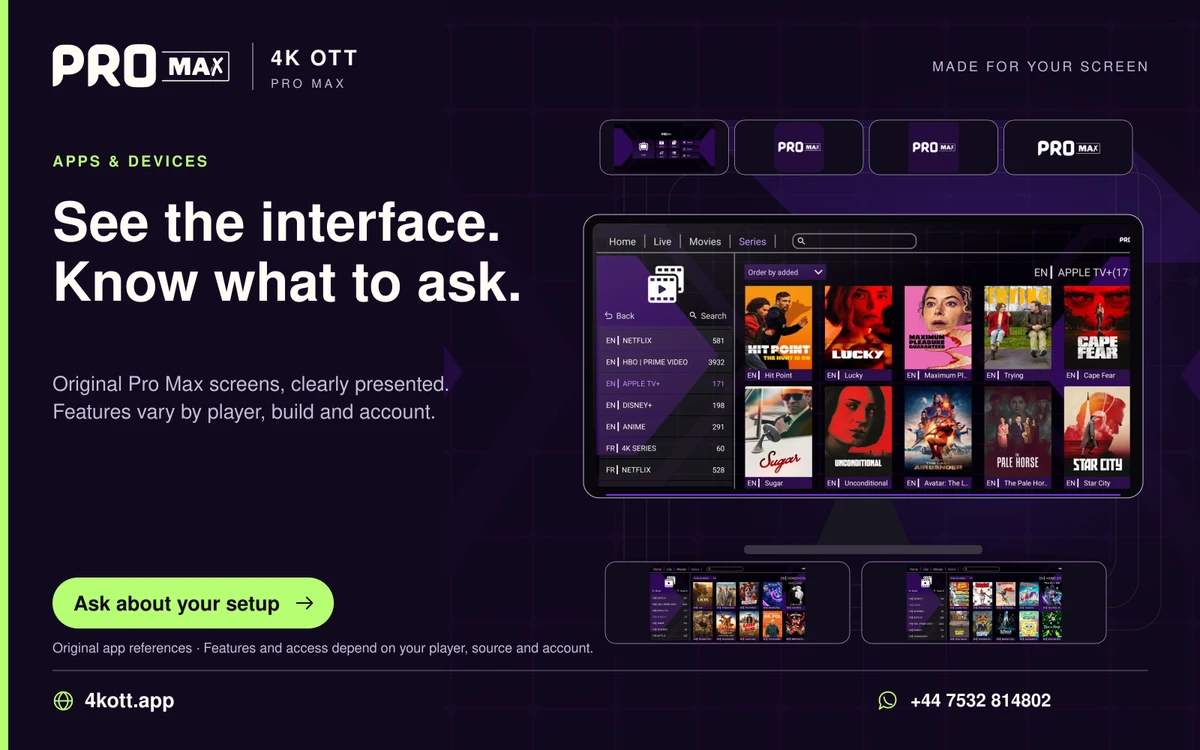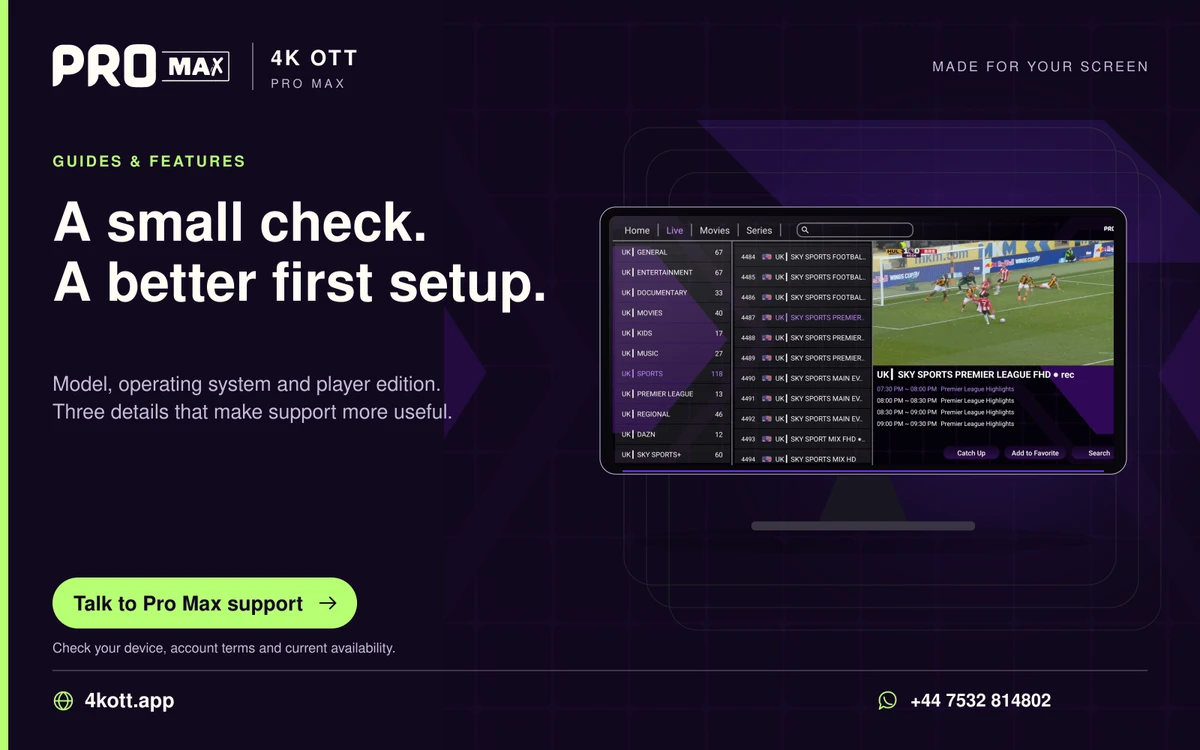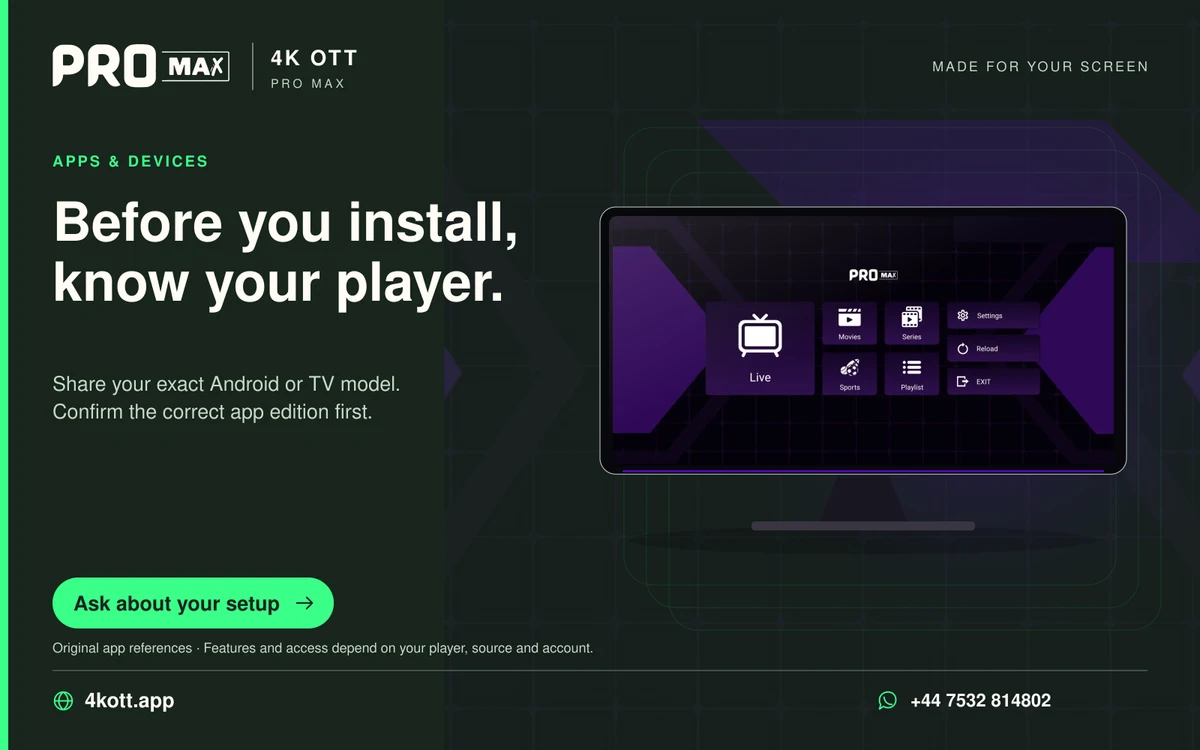
An app that opens in portrait orientation or requires taps may be a phone build rather than a television interface. Successful installation does not guarantee usable TV navigation. Look for the publisher’s supported TV edition or choose a compatible player instead of assuming a remote-control setting will repair every screen. Inspect the app edition before installing extra utilities or changing display settings. A platform mismatch can leave essential controls inaccessible even when the video itself would otherwise be decodable by the device.
Recognise a design mismatch
Tiny touch buttons, a portrait layout and menus without a visible focus highlight are signs that the application was designed for a different input method. This differs from a video’s aspect-ratio setting. Test whether directional presses move a visible selection between login fields and buttons, and whether Back returns to the previous screen. If focus never reaches an essential control, note that exact limitation. A stretched video inside an otherwise usable TV interface is a different problem; distinguish menu orientation and input support from the aspect ratio of playing content.
Avoid stacking workarounds
A mouse can sometimes operate a phone app, but it does not establish that playback, licensing or updates are supported on the TV. Several workaround utilities add complexity to an otherwise simple household setup. An accessory mouse may help establish which button is unreachable, but it does not make future updates or account recovery reliable. Avoid granting unrelated accessibility or installation permissions to several utilities merely to navigate one unsuitable build. Before keeping a workaround, check whether every regular household user can complete login, source selection, playback and exit with the intended controls.
Prefer the intended edition
Check the publisher and TV store for a television-specific build. If the required app is unavailable on the device, an external supported player is often a clearer route than forcing an unsuitable mobile interface. Record the package and version of the existing installation before replacing it. Preserve authorised source details privately, because another edition may not import its settings. Install the supported replacement through its documented route and test directional navigation before purchasing a licence or rebuilding favourites. Successful launch alone is too narrow a test for a player used from the sofa.
A practical sequence
- Identify the exact installed app and publisher.
- Check whether a TV-specific edition exists.
- Replace an unsuitable phone build with a supported TV player.
An example
Changing the television from 16:9 to another picture size will not turn a portrait phone application into a remote-friendly TV interface. Instead, inspect whether the installed edition supports directional focus and landscape menus. Replace the phone build if those essential controls are absent, preserving the provider details for the replacement setup.
Questions about this topic
Does a rotation utility add Android TV support?
No. It changes screen orientation, not the application’s navigation design.
Is successful installation a compatibility test?
It proves only that the installer accepted the package, not that every feature works.