
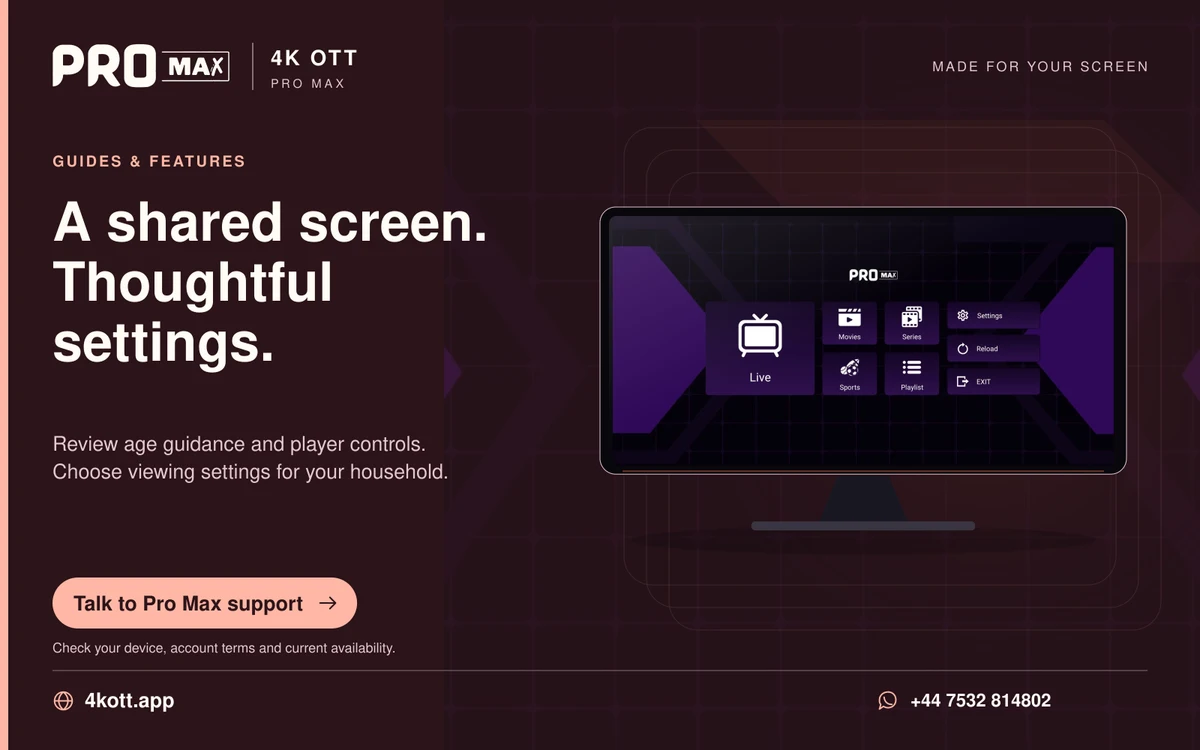
Readable menus need sufficient contrast between text, controls and backgrounds. A high-contrast system option can help supported interfaces, but it does not guarantee that an app using custom graphics responds correctly. Check selected, disabled and error states as well as ordinary text. Inspect text, focus indicators and disabled states against their actual backgrounds from the usual seat. A dark theme can still use faint grey lettering or an almost invisible selection border, so judge the rendered contrast rather than the theme name.
Check focus contrast
A subtle border can disappear from a sofa viewing distance. Move focus across posters with light and dark artwork and observe whether the selected item remains obvious. A thin pale outline may disappear against one poster even if it looks clear on another. Check dialogs and settings as well as the main catalogue, since small controls can use different styling. If focus is lost visually, record the exact background and state rather than turning up the whole TV until every image becomes washed out.
Avoid colour-only meaning
Status should also have words or recognizable symbols. Look for words, shapes or symbols supporting colour-coded status, such as a named error or a check mark for selection. A red badge without a label can remain ambiguous even when its contrast is strong. High contrast and colour-independent meaning solve related but distinct problems. Review focused, selected, unavailable and error states separately so the interface does not communicate several different conditions through one subtle colour change that the viewer must guess.
Report specific screens
A screenshot without credentials can show the barrier. Capture the affected screen without account identifiers and describe the text, background and state that are difficult to distinguish. Mention the viewing distance, supported display scale and any active accessibility contrast setting that changes the result. Do not rely on a photograph's brightness as a precise measurement of interface colours, since exposure can alter appearance. A developer can use the specific screen and state to inspect the actual design values and improve the underlying contrast.
A practical sequence
- Inspect focus over varied artwork
- Check small dialog text
- Look for labels alongside colour
- Report the exact low-contrast state
An example
The selected channel uses a pale border that is hard to distinguish from its poster. A catalogue uses readable white titles, but its selected card has a faint grey outline that vanishes over bright artwork. The viewer reports that focus state specifically, avoiding a blanket dark-mode recommendation that would not necessarily make the selection boundary distinguishable.
Questions about this topic
Does dark mode guarantee contrast?
No. Foreground, background and state indicators still need a readable difference within the chosen theme.
CanTV brightness fix every menu?
Not an interface colour-design problem. Changing the panel's overall light level cannot create missing distinctions between poorly chosen interface colours.